

UI tour
Helm DJ has three main pages — Decks, Tracks, and Settings — plus a persistent top bar and a health bar along the bottom. This page walks the whole surface so you know where everything lives.
The top bar
Section titled “The top bar”Always visible, on every page.

Left to right:
- HELM/DJ lockup — click to jump back to the Decks page. An update badge appears next to it when a new version is available.
- LIVE — the global arm switch for cue automation. When lit, cues fire. When dark, every trigger is evaluated but blocked — you can watch what would fire without sending anything. Use dark for rehearsal walk-throughs.
- STOP — the panic switch. One click silences everything instantly: cues blocked, LTC output goes silent, MTC freezes, MIDI Clock sends a Stop. Click again to clear. Use it when something on stage is misbehaving and you need the rig quiet now.
- Page tabs — Decks, Tracks, Settings.
The health bar
Section titled “The health bar”A slim strip along the bottom of the window, visible everywhere. Five cells, each with a status dot:
| Cell | Shows |
|---|---|
| Arm state | LIVE (green), DISARMED (amber — triggers blocked), or STOP (red — panic engaged) |
| Pro DJ Link | How many decks are online, No CDJs, or No packets if the network has gone quiet |
| MIDI | The configured cue output port, or No output if none is set |
| LTC | The active LTC device, N per-deck when using per-deck routing, or Off |
| Saved | When your session data last auto-saved |
If a cell is amber or red mid-show, that’s your first place to look. See Monitoring & diagnostics.
Decks page
Section titled “Decks page”The live view — one card per deck, ordered P1 → P4 top to bottom.
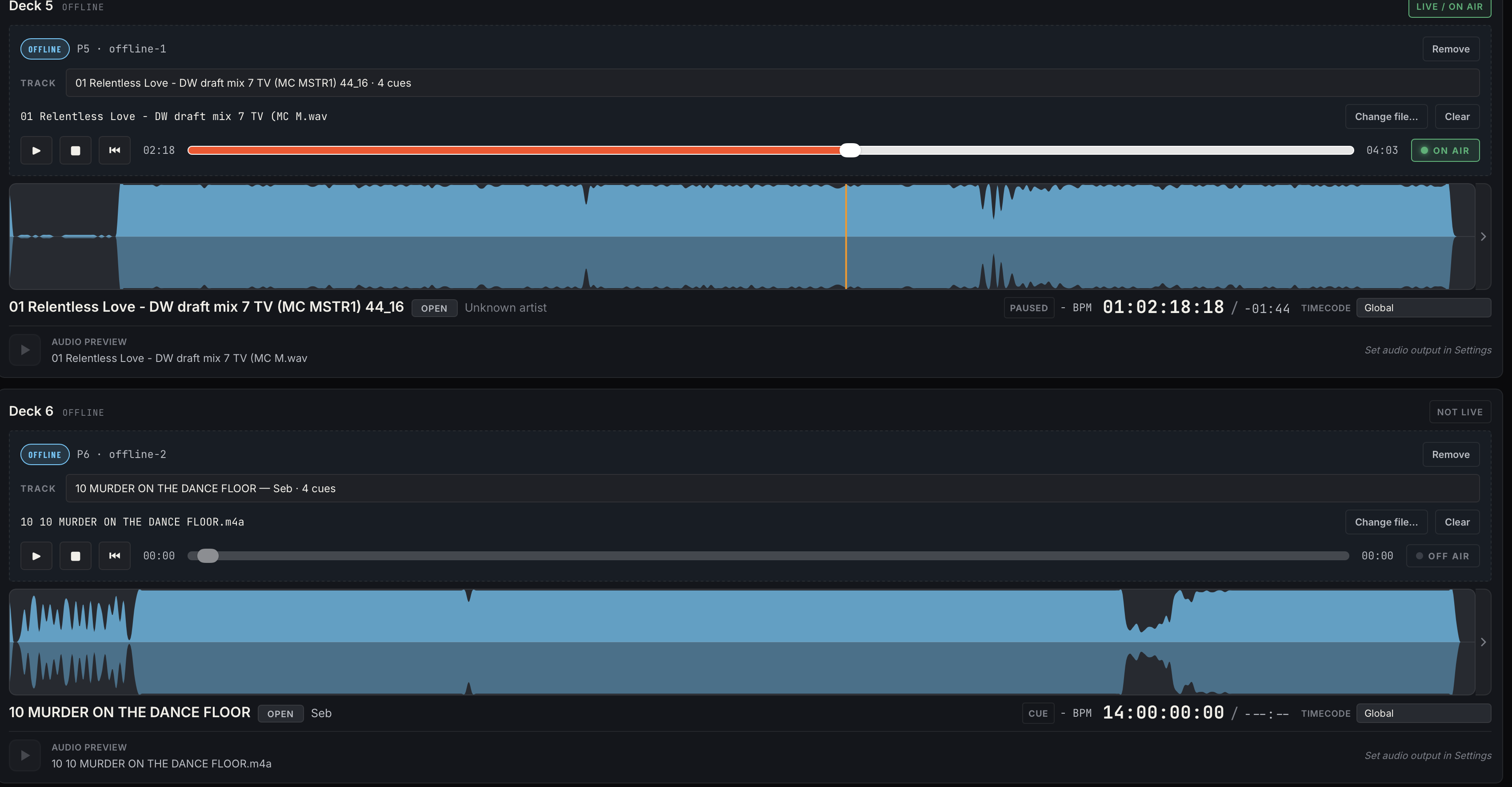
(shown with offline decks — CDJs on the network appear the same way, with their model name in the header)
Each deck card contains:
- Header — player number, model, connection state, ON AIR badge.
- Waveform — the track’s waveform with a moving playhead, cue markers (green pills along the top), and loop indicators (amber region) when the DJ engages a loop.
- Expand arrow (right edge of the waveform) — folds out the cue panel: the track’s timeline cues with numbers, names, notes, and a live countdown to the next cue. Past cues dim; the next cue is highlighted green.
- Track info row — title, artist, plus:
- Open — shown when the loaded track is already in your active setlist. Jumps to it on the Tracks page.
- Capture — shown when it isn’t in the setlist. Adds it and jumps to the Tracks page.
- 📋⇨ (Capture & Copy) — captures the track and opens an inline picker so you can immediately copy cues/timecode/label from another track in your setlist. The fast path when a programmed track shows up under a new USB ID.
- Status group — transport state (PLAYING / CUE / …), live BPM, LOOP badge when looping.
- Timecode readout — current track position as timecode, plus time remaining.
- Timecode routing dropdown — route this deck’s timecode to a specific LTC audio device or MTC port, overriding the global output. See Timecode & MIDI.
- Audio preview row — when the track has a reference audio file assigned, play it locally in sync with the CDJ position (with its own volume control and output device).
The cue activity panel docks at the bottom of the Decks page — a rolling history of every cue that fired or was skipped, with the resolved MIDI values that actually went out. It folds up when you need more room.

Tracks page
Section titled “Tracks page”Where you build the show. Two panes: setlist sidebar on the left, track detail on the right.
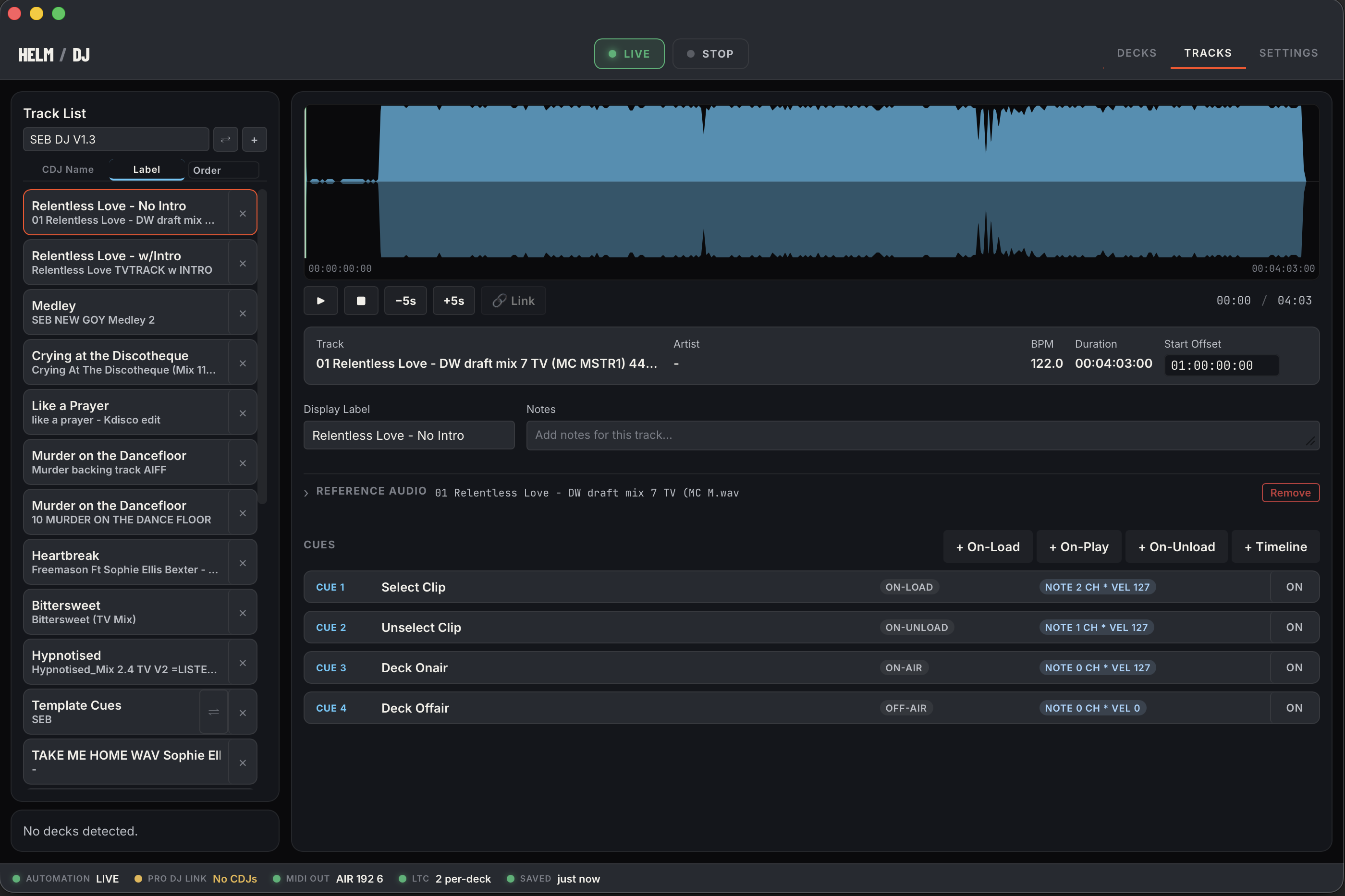
Left sidebar — the setlist
Section titled “Left sidebar — the setlist”- List picker — switch between setlists, or
+ New List…to create one. - Track Migration button — opens the setlist management tools (Setlist Manager, Import Tracks, Copy Track Data).
- Sort dropdown — Manual (drag to reorder), Title, Artist, Label, Timecode, or BPM.
- CDJ Name / Label toggle — show tracks by their CDJ metadata name or by the custom label you’ve given them.
- Add track form — add a placeholder track manually (title, artist, BPM, duration) before you have the USB in hand. Link it to the real CDJ track later.
- Per-deck capture buttons — one per connected deck; captures whatever that deck currently has loaded straight into the list.
- The track rows — click to select; in Manual sort, drag to reorder.
Right pane — track detail
Section titled “Right pane — track detail”For the selected track:
- Waveform — full-width, with cue markers you can drag left/right to reposition. Click to scrub the local preview when a reference audio file is loaded.
- Transport row — play/pause, stop, ±5 s jump for the local audio preview, plus the 🔗 Link button: when the track is loaded on a deck, Link makes the waveform playhead follow the deck instead of the local preview.
- Metadata row — track, artist, BPM, duration, and the Start Offset (the timecode value this track starts at — see Building a show).
- Label & notes — your custom display label and free-text notes.
- Reference Audio — assign a local audio file to the track for preview and waveform scrubbing.
- Cues section — the cue list with
+ On-Load,+ On-Play,+ On-Unload,+ Timelinebuttons. Each cue row shows its number, name, trigger, action summary, and enable toggle. Click a cue to open the cue editor.
Settings page
Section titled “Settings page”
Seven tabs:
| Tab | What lives there |
|---|---|
| Devices | Every device on the network (CDJs, mixer, offline decks), recent-tracks history, the Track Matching toggle, offline deck creation, and the diagnostics panel with the Copy diagnostic button |
| Audio | Per-deck audio preview output routing |
| MIDI | MTC output port, cue MIDI output port, MIDI Clock (BPM) configuration |
| Timecode | Frame rate, master LTC device/channel, source-deck mode, pause/resume all timecode, per-deck timecode routing |
| Network | Which network adapter Pro DJ Link uses |
| Updates | Current version, check for updates, install |
| Licence | Licence key entry and status |
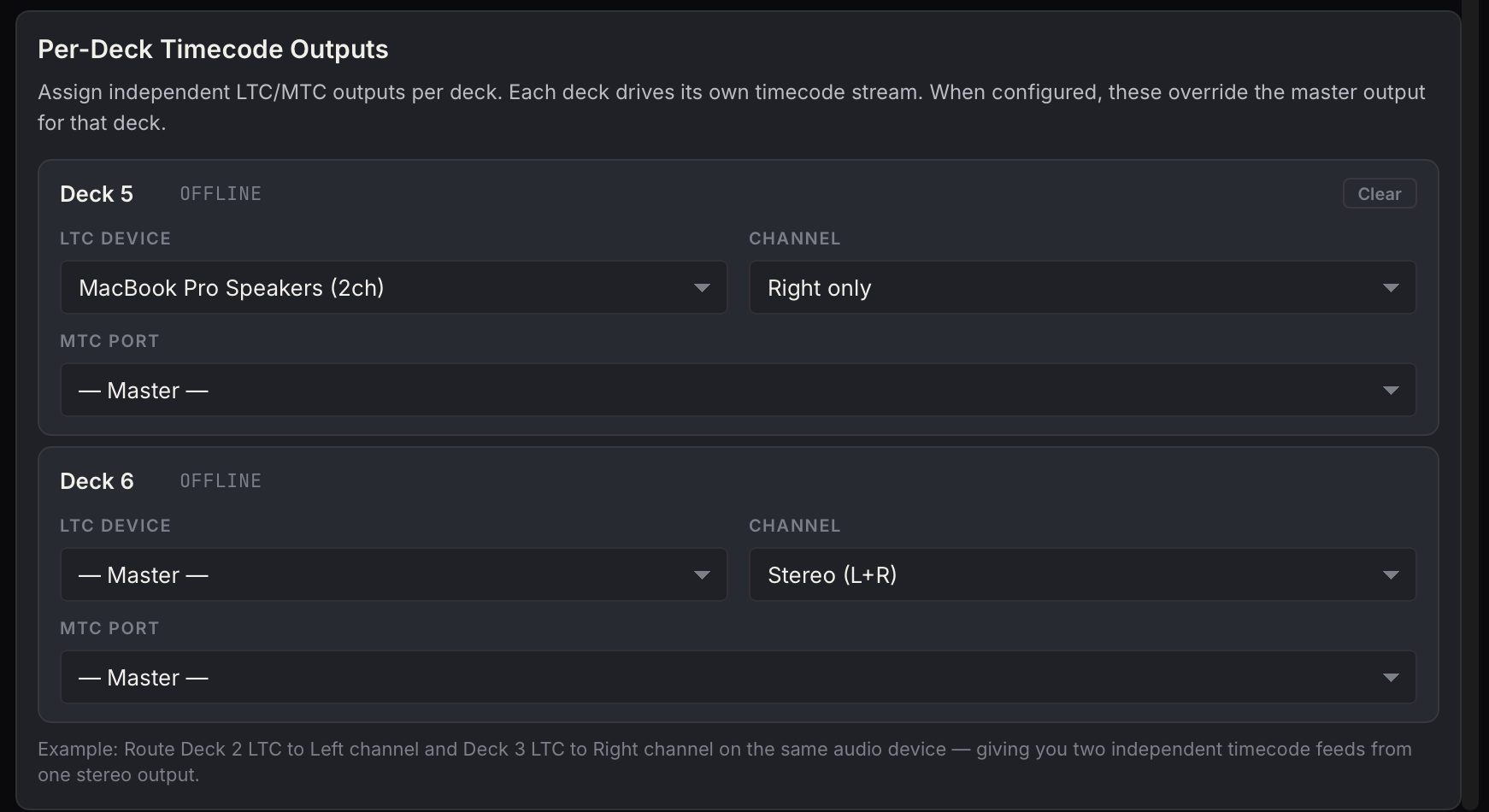
The macOS menu bar
Section titled “The macOS menu bar”- Helm DJ — About, Check for Updates…
- Decks — Deck Overview, Go Live, Emergency Stop
- Tracks — Track List, and Cue Label Style (Number only / Name only / Number + Name) which controls how cue markers are labelled on every waveform
- Settings — jump straight to any Settings tab
- Network — pick the Pro DJ Link network adapter without opening Settings