

Tracks & setlists
Everything in Helm DJ hangs off the active setlist — the list of tracks the cue engine watches for. This page covers getting tracks in, keeping setlists organised, moving shows between machines, and the realities of rekordbox USBs.
Capturing tracks
Section titled “Capturing tracks”From the Tracks page: each connected deck has a capture button in the sidebar. Load the track on the CDJ, hit capture — title, artist, BPM, duration, and waveform come across.
From the Decks page: the button next to the artist name on each deck card:
- Open — the loaded track is already in your setlist; jumps to it on the Tracks page.
- Capture — adds it to the setlist and jumps to it.
- 📋⇨ Capture & Copy — see below.
Capture & Copy
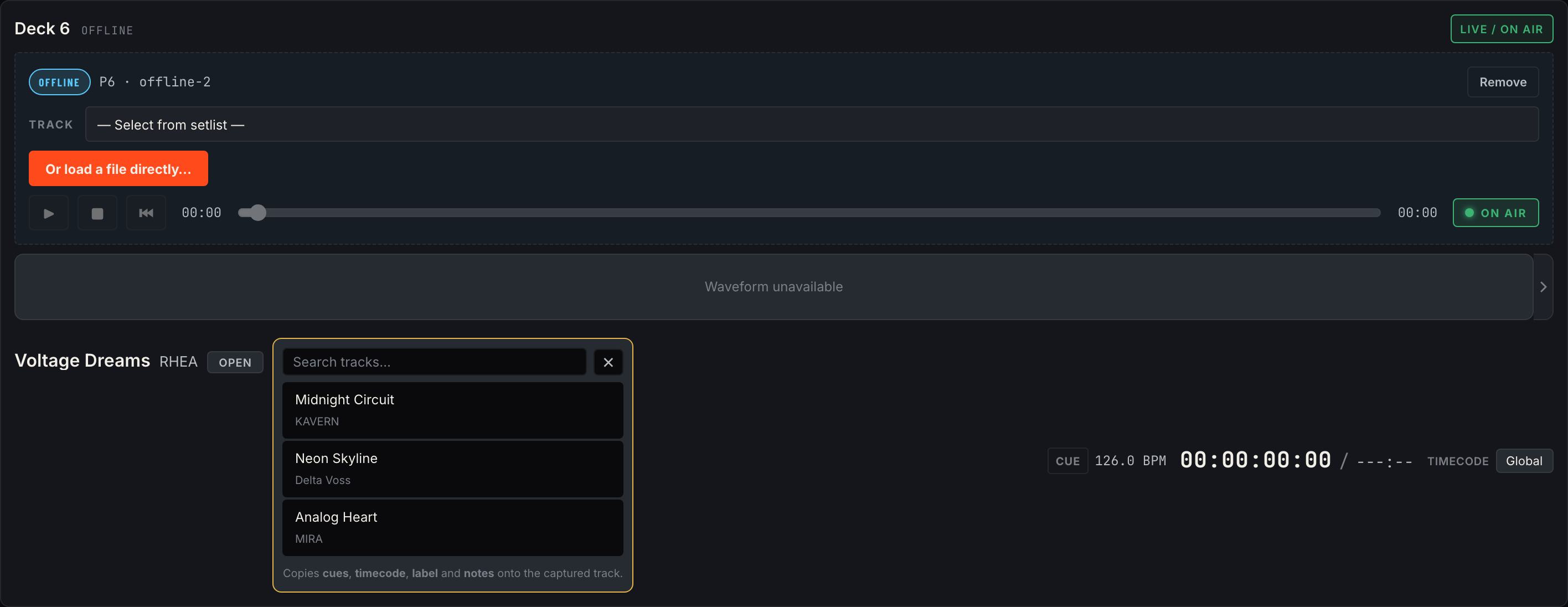
Section titled “Capture & Copy”The fast path for “this track is programmed, but it’s shown up under a different identity” (new USB, re-export, different stick). Click 📋⇨ on the deck card:
- The track is captured into the setlist immediately.
- An inline picker opens on the deck card listing every other track in the setlist (searchable).
- Click the source track — its cues, timecode offset, label, and notes are copied onto the just-captured track. Done.
Manual tracks
Section titled “Manual tracks”The add-track form in the Tracks sidebar creates a placeholder from just a title (artist, BPM, duration optional). Program cues against it before you ever have the music. When the real track first appears on a deck, open the placeholder and link it to the CDJ track so captures and cues line up.
Track Matching
Section titled “Track Matching”Rekordbox gives the same audio file a different internal ID on every USB export. Without countermeasures, the same song from two different sticks looks like two unrelated tracks — and your cues don’t fire.
Helm DJ handles this with Track Matching (Settings → Devices → Track Matching, on by default): tracks are recognised by content — title + artist + duration — so the same song from any stick resolves to the same programmed track, and cues, timecode, and setlist membership carry across.
Turn it off only if your USBs are bit-for-bit clones of one master stick (see below) — then IDs are already identical and strict matching avoids any chance of two genuinely different songs with identical metadata being merged.
Managing setlists — the Track Migration tools
Section titled “Managing setlists — the Track Migration tools”Click Track Migration in the Tracks sidebar. Three tabs:
Setlist Manager
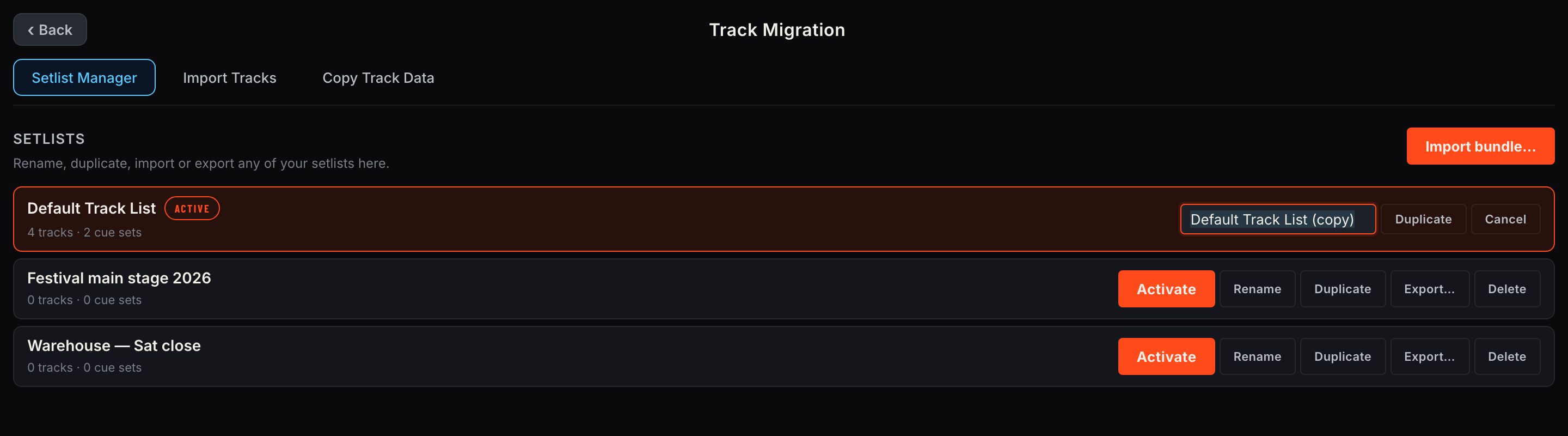
Section titled “Setlist Manager”One row per setlist, with track/cue-set counts:
- Activate — make this the active setlist (what the cue engine uses).
- Rename — inline edit.
- Duplicate — inline name field appears pre-filled with
(copy); Enter to confirm. Use it to fork a show (“Friday” → “Saturday with tweaks”) — cues are cloned too. - Export… — inline name field lets you rename the outgoing bundle without renaming your in-app list, then pick a destination folder.
- Delete — removes the setlist (the last remaining list can’t be deleted).
- Import bundle… (top right) — see below.
Import Tracks
Section titled “Import Tracks”Pull selected tracks from another setlist into the active one — with per-track conflict resolution when a track already exists in both (skip, overwrite, or duplicate).
Copy Track Data
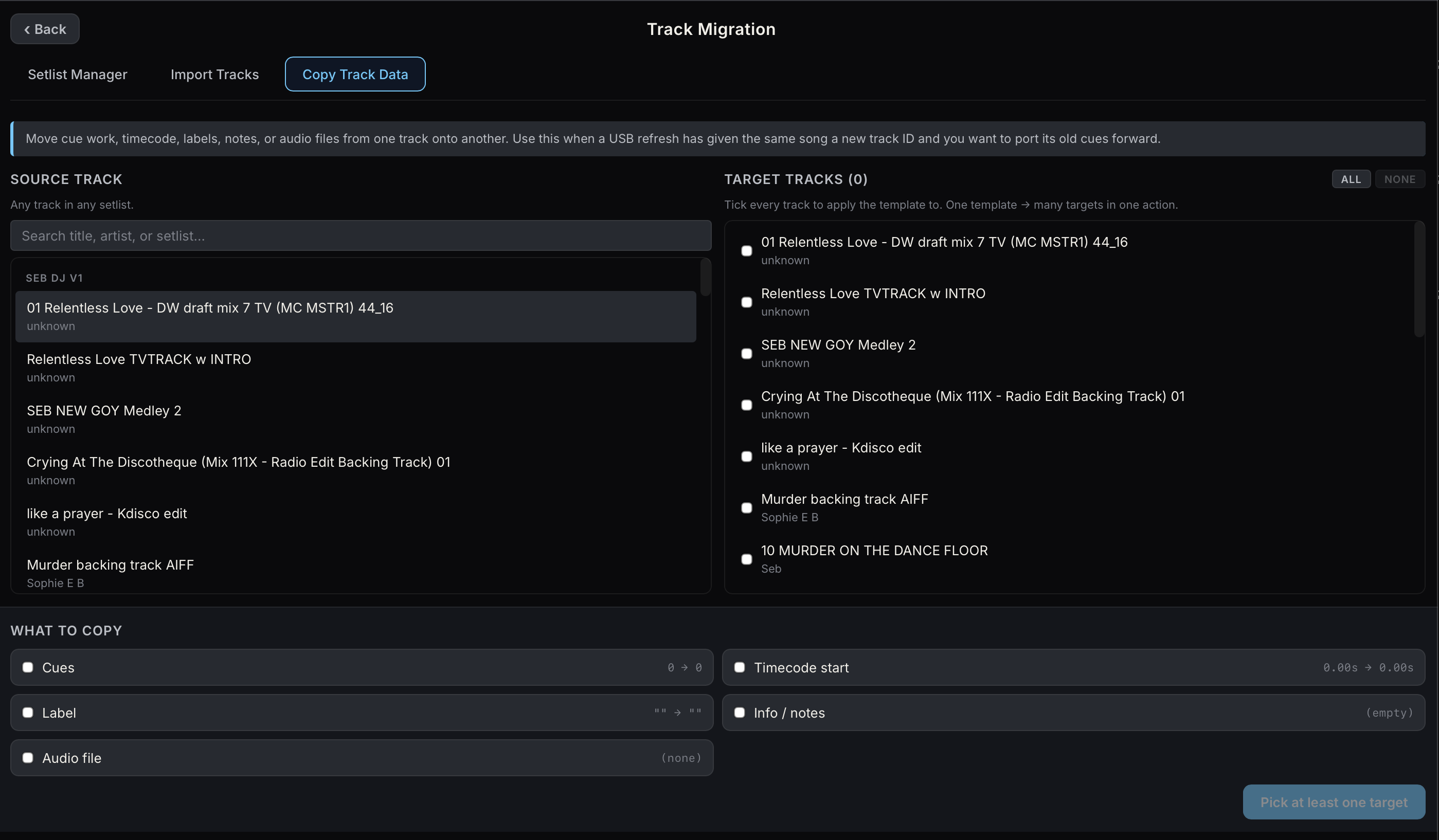
Section titled “Copy Track Data”Copy programming from one track onto one or many others. Pick a source track (searchable across all setlists), tick target tracks in the active list, choose what to copy — cues, timecode start, label, notes, audio file — and confirm. The multi-target form of Capture & Copy.
Exporting & importing setlists
Section titled “Exporting & importing setlists”A setlist exports as a .helm bundle — a folder containing the setlist, every track’s cues and metadata, and copies of any assigned reference audio files. That makes it the unit of handover: build the show on one machine, export, and import on the show machine (or send it to a colleague).
Export: Track Migration → Setlist Manager → Export… on the list’s row → optionally rename the outgoing bundle → choose a destination folder.
Import: Setlist Manager → Import bundle… → pick the bundle folder. The list keeps its original name; you’re only prompted to rename if a list with that name already exists. Imported audio files are copied into the app’s local storage, so the bundle folder can be deleted afterwards.
Reference audio
Section titled “Reference audio”Each track can have a local audio file attached (Track detail → Reference Audio). This gives you:
- Waveform scrubbing — click the waveform to jump the local preview around; place timeline cues precisely.
- Synced preview on the Decks page — hear the track through your own output, locked to the CDJ’s playhead (per-deck output routing in Settings → Audio).
Supported formats: WAV, MP3, AAC/M4A, FLAC, AIFF. Files are copied into the app’s storage on import, so the original location doesn’t need to stay put.
Sorting & display
Section titled “Sorting & display”- Sort dropdown: Manual (drag-to-reorder), Title, Artist, Label, Timecode, BPM.
- CDJ Name / Label toggle: show tracks by their CDJ metadata title or by your custom labels — useful when the exported filenames are unhelpful (
01 FINAL MASTER v3 TV MIX) and you’ve labelled them properly (Opener,Ballad,Encore).