

Timecode & MIDI
Helm DJ outputs three kinds of time signal, all generated natively for sample-accurate timing and all silenced instantly by the STOP panic switch:
| Signal | What it is | Typical consumer |
|---|---|---|
| LTC | Timecode as an audio signal | Lighting desks, media servers with an audio TC input |
| MTC | Timecode over MIDI | Media servers, show control software |
| MIDI Clock | BPM as 24 PPQ ticks | Resolume Arena, synths, anything that beat-syncs |
What the timecode actually says
Section titled “What the timecode actually says”For LTC and MTC, the output value is the selected track’s Start Offset (set per track on the Tracks page) plus the elapsed time on the deck. Give each track a unique offset — one hour apart is the common scheme — and your desk always knows which song it’s in regardless of play order. See Building a show.
Source modes — which deck drives the output
Section titled “Source modes — which deck drives the output”All three signals share the same source-mode concept, set in Settings → Timecode (and separately for MIDI Clock in Settings → MIDI):
| Mode | Behaviour |
|---|---|
| Auto (on-air) | Follow the deck that’s live through the mixer. Sticky through a crossfade — stays with the current deck until it goes off-air, then hands to the next on-air deck. Default, right for most shows. |
| Network master | Follow whichever CDJ holds the MASTER flag (the hardware MASTER button). Useful in rehearsal when nothing is on-air. |
| Pin to deck | One specific deck drives the output, always. |
Walkthrough: LTC to a lighting desk
Section titled “Walkthrough: LTC to a lighting desk”- Connect an audio output (interface or headphone jack) from the Mac to the desk’s LTC input.
- Settings → Timecode — set the Frame Rate to match the desk (24/25/30).
- Tick Master LTC enabled, pick the Master LTC Device, and set Channel (stereo, or left/right if you’re splitting one stereo output into two feeds).
- Choose the Source Deck mode — Auto (on-air) for a normal show.
- Play a track on a deck and bring its fader up: the desk should read timecode = that track’s start offset + elapsed.
Pause / Resume all timecode (bottom of the Timecode tab) kills every LTC + MTC stream in one click without losing any of the routing config, and the same button brings it all back. Use it when the desk operator asks for silence on the TC line.
Walkthrough: per-deck timecode
Section titled “Walkthrough: per-deck timecode”For rigs that want a separate timecode feed per deck (e.g. two media server layers, one per turntable):
- Quick way: on the Decks page, each deck card has a Timecode dropdown — pick an LTC device or MTC port for that deck right there.
- Full control: Settings → Timecode → Per-Deck Timecode Outputs — each deck gets an LTC device + channel and/or an MTC port.
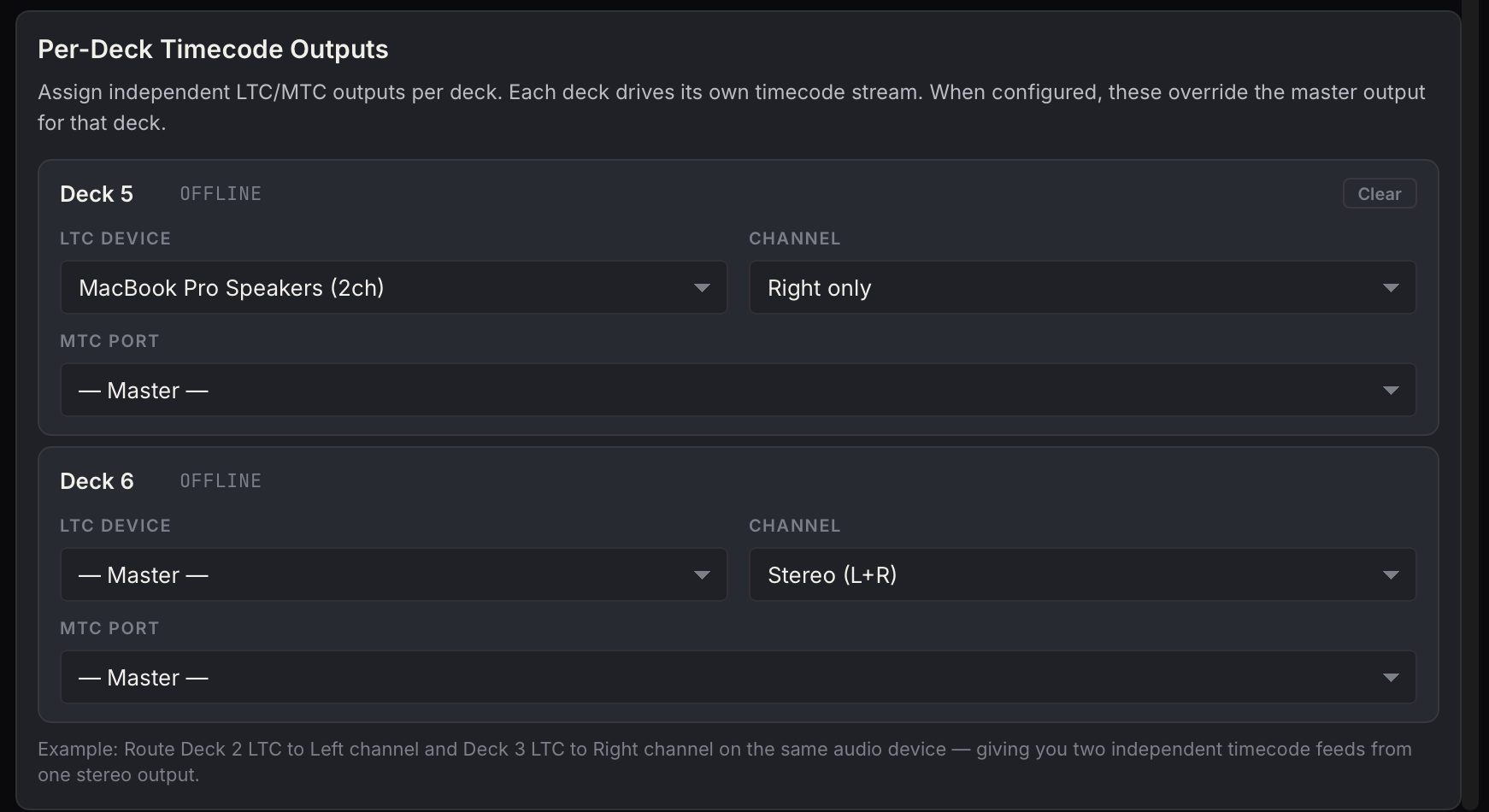
Per-deck routes override the master output for that deck. A classic setup: Deck 1 → left channel of one interface, Deck 2 → right channel of the same interface — two independent TC feeds from one stereo output.
MTC (MIDI Timecode)
Section titled “MTC (MIDI Timecode)”Set the MTC Output Port in Settings → MIDI. Frame rate and drop-frame come from the shared Timecode settings. Helm DJ streams quarter-frame messages continuously and sends a full-frame message whenever the playhead jumps (track load, loop, cue), so the receiver snaps to position instead of chasing.
Per-deck MTC ports are configured in the same per-deck routing table as LTC.
MIDI Clock (BPM)
Section titled “MIDI Clock (BPM)”Sends the source deck’s live tempo as MIDI Clock so external apps stay beat-locked. Configure in Settings → MIDI → MIDI Clock (BPM):
| Setting | Notes |
|---|---|
| Send MIDI Clock | Master enable |
| Output Port | MIDI Clock is system realtime — it applies to the whole port, not a channel. One BPM per port; use a dedicated (virtual) port if other MIDI shares the interface |
| Tempo Source | Same three modes as timecode (auto on-air / network master / pinned) |
| Send Start/Stop with deck transport | Sends Start when the source deck plays and Stop when it pauses. Clock ticks flow continuously either way so receivers never lose tempo lock |
Walkthrough: BPM into Resolume Arena
Section titled “Walkthrough: BPM into Resolume Arena”- Create a virtual MIDI port: Audio MIDI Setup → Window → Show MIDI Studio → IAC Driver → enable, add a bus named e.g.
Helm Clock. - In Helm DJ: Settings → MIDI → enable Send MIDI Clock, Output Port → the IAC bus, Tempo Source → Auto.
- In Resolume: Preferences → MIDI → enable the IAC bus as input and turn on its Clock option.
- Play a track — Resolume’s BPM locks to the deck. Pitch-fader moves follow within a beat or two.
Small tempo wobble from the CDJ’s pitch reporting is filtered — only meaningful BPM changes are forwarded, so receivers see a stable tempo, not jitter.
MIDI cue output
Section titled “MIDI cue output”Separate from all of the above: the Cue Output Port (Settings → MIDI) is the default port for MIDI actions fired by cues. One physical port can serve multiple roles — set the same port name wherever needed.
Panic behaviour
Section titled “Panic behaviour”Engaging STOP silences everything at the audio/MIDI engine level:
- LTC outputs write silence
- MTC quarter-frame streams freeze
- MIDI Clock sends
Stopand holds (ticks resume on clear)
Clearing STOP resumes output from the current deck position.
Defaults
Section titled “Defaults”A fresh install ships with: MTC format, 25 fps, no drop frame, follow transport on, LTC off, MIDI Clock off. Everything is opt-in from Settings.