

Monitoring & diagnostics
Once a show is programmed, Helm DJ is mostly something you watch. This page covers the monitoring surfaces during a show and the diagnostic tools for when something looks wrong.
During the show: the Decks page
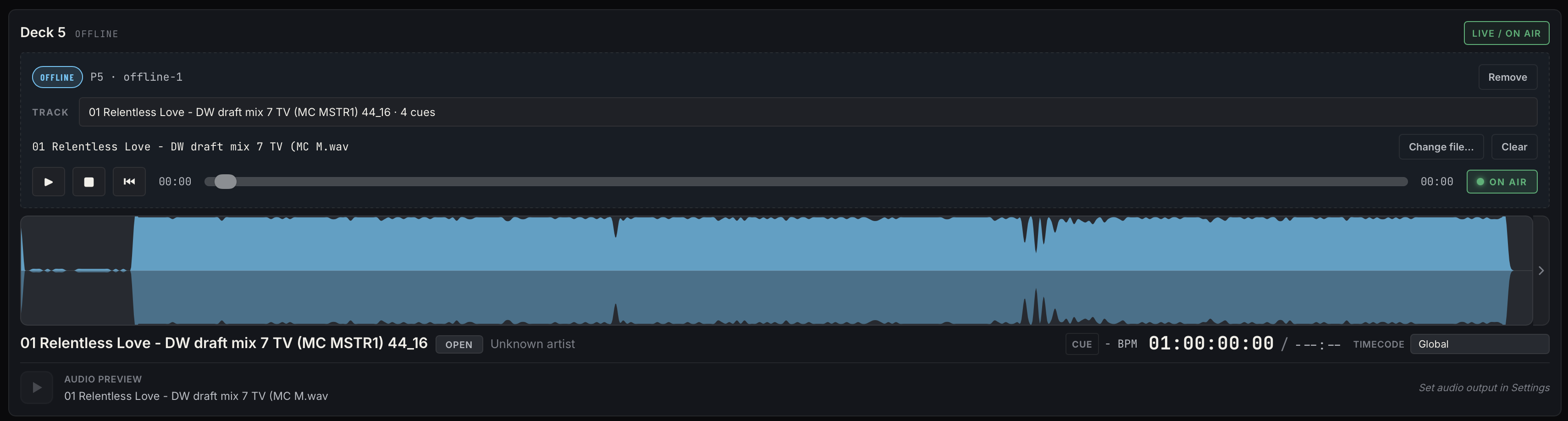
Section titled “During the show: the Decks page”Keep the Decks page up. Per deck you get, live:
- Waveform + playhead — where the track is, with cue markers and the DJ’s active loop (amber region).
- Cue panel (expand arrow on the waveform) — upcoming timeline cues with a countdown to the next one, notes beside each cue name. Past cues dim as they fire.
- ON AIR badge — whether the mixer has this deck live.
- Transport / BPM / LOOP — playing state, live tempo, loop indicator.
- Timecode readout — the exact TC being output for this deck, plus time remaining.
The cue activity history
Section titled “The cue activity history”Docked at the bottom of the Decks page. Every trigger evaluation lands here in real time:
- fired entries show the resolved output — e.g.
CH1 NOTE60 VEL127— the actual values sent, with per-deck overrides already applied. - skipped entries show why: deck off-air (
live_only), debounced, cue disabled, automation disarmed.
Reading it under pressure: the desk didn’t react → find the cue in the history. If it says fired, Helm DJ sent the MIDI — look downstream (cabling, port routing, desk mapping). If it says skipped, the reason tells you what gate blocked it. If it isn’t there at all, the trigger never happened — check the track is in the active setlist and the deck is being followed.
The health bar
Section titled “The health bar”The strip along the bottom edge, on every page — five cells with status dots:
| Cell | Green means | Amber/red means |
|---|---|---|
| Arm | LIVE — cues firing | DISARMED (triggers blocked) or STOP (panic) |
| Pro DJ Link | Decks online | No CDJs found, or no packets arriving |
| MIDI | Cue output port configured | No output port set |
| LTC | Device streaming (or N per-deck routes) | LTC off |
| Saved | Session auto-saved recently | — |
Anything not green mid-show is your first stop.
Runtime controls recap
Section titled “Runtime controls recap”- LIVE — global arm/disarm. Disarmed still logs everything to the activity history as blocked, so it doubles as a dry-run mode.
- STOP — panic: cues suppressed, LTC silent, MTC frozen, MIDI Clock stopped. Both also live in the macOS menu under Decks.
- Per-deck automation switch — kill one deck’s cues without affecting the rest.
- Pause/Resume all timecode — Settings → Timecode; silences every TC stream without losing routing config.
Settings → Devices
Section titled “Settings → Devices”The inventory view:
- Devices table — every CDJ, mixer, and offline deck: player number, IP, model, on-air state, last-seen freshness. A deck going stale here (no packets for a few seconds) usually means a network cable/switch issue.
- Recent tracks — a rolling log of what was loaded on each deck this session. Handy after the show to reconstruct what was actually played.
- Track Matching toggle — see Tracks & setlists.
- + Add offline deck — a virtual deck with local transport, for programming cues with no CDJs on the network (hotel-room programming).
Diagnostics
Section titled “Diagnostics”At the bottom of Settings → Devices, the diagnostics section unfolds:
- Protocol status — packet counters by type (keepalive, beat, CDJ status, on-air…). If
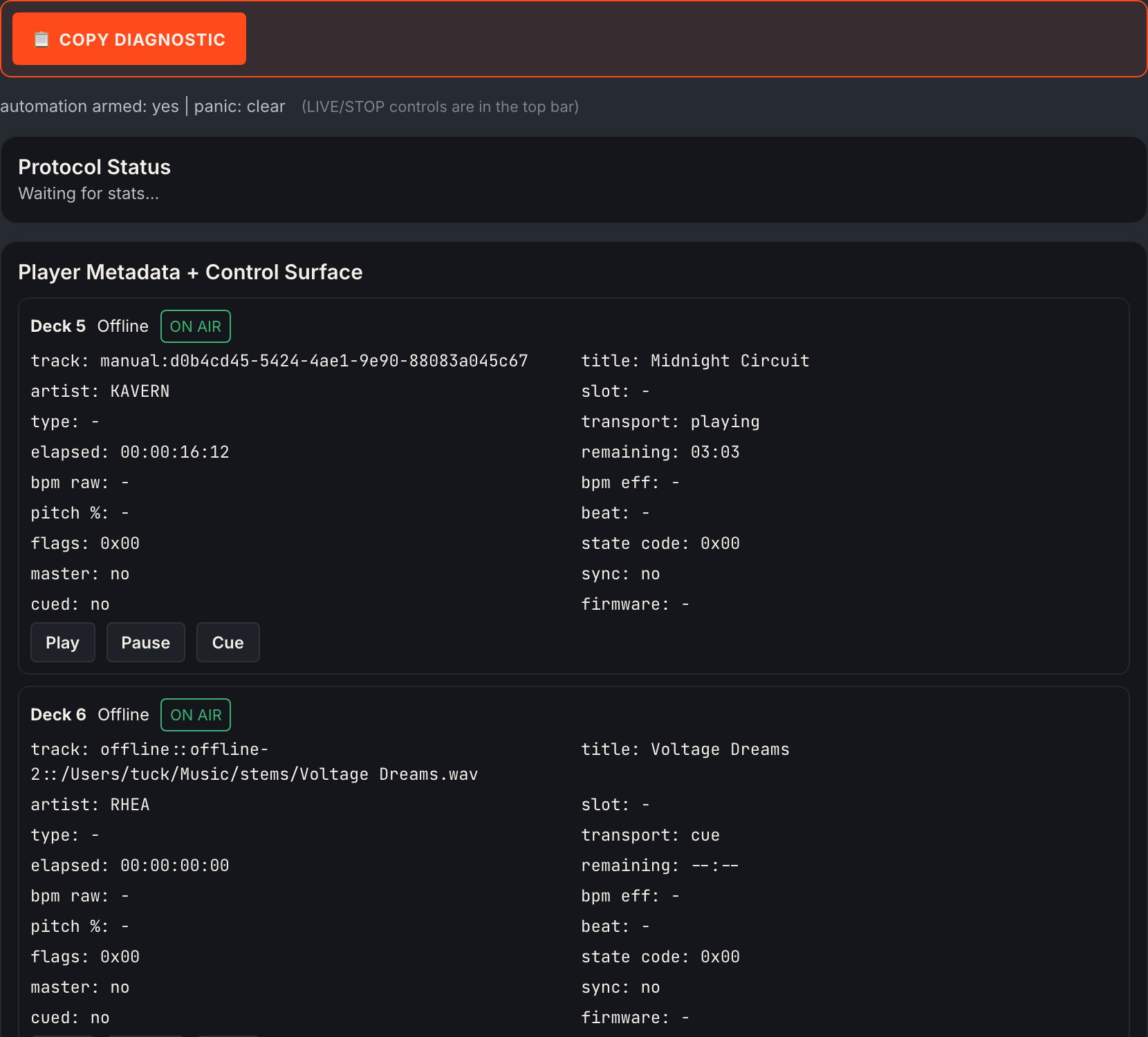
CDJ statusis counting up, deck data is flowing; if only keepalives count, decks are visible but not sending status (usually a player-number or network issue). - Player metadata — the raw decoded state per deck: track IDs, transport flags, BPM raw/effective, master/sync flags, firmware.
- Event log — the app’s internal log stream.
Copy diagnostic
Section titled “Copy diagnostic”The 📋 Copy diagnostic button at the top of the diagnostics panel packages everything — app version, network adapter, packet counters, full deck + player state, timecode/MIDI config, recent activity, recent logs — into one JSON blob on your clipboard. When reporting an issue, click it while the problem is happening and paste the result into your report. It answers most “what was the app seeing?” questions in one shot.
Common symptoms
Section titled “Common symptoms”| Symptom | First checks |
|---|---|
| Decks visible, no track data | Load a track (idle CDJs send little); check CDJ status counter in diagnostics; power-cycle the CDJ to refresh its peer table |
| Cues not firing | Health bar: LIVE armed? Activity history: fired or skipped, and why? Is the track in the active setlist? |
| Same song from a new USB not recognised | Track Matching on? (Settings → Devices). Or use 📋⇨ Capture & Copy on the deck card to remap in seconds |
| Timecode jumpy on one channel | Two decks sharing one audio device — make sure they’re on separate channels (one L, one R) |
| No decks at all | Settings → Network (or the Network menu): pick the adapter on the CDJ subnet (usually a 169.254.x.x self-assigned link). Mac and decks must be on the same switch |